
You built the whole screen with LEGO and it works fine — so why does it look so cluttered, and why won’t this one button do what you want?
Building a Workshop screen is a lot like building a LEGO house
Building a screen in Workshop resembles building a house out of LEGO. Snap the pre-made bricks (widgets) together via their studs (variables), and you get a fairly convincing result fast, without writing a line of code. Widget placement and variable binding itself was already covered in a separate article, so here we cover what comes next — why a house built entirely from LEGO can still look cluttered, and what happens when you need a brick shape that isn’t in the set.
The instruction manual for a tidy LEGO house — official layout principles
Palantir’s official documentation lays out specific numeric guidelines for designing a Workshop screen.[1]
- Keep primary actions per screen to 5 or fewer. Cram too many functional bricks into one set, and users can’t tell what to click.
- Avoid more than 10 components in a single view. Pack the bricks too densely and the finished shape disappears.
- Maintain 30-40% whitespace. Even a LEGO set’s product photo needs background space for the build to stand out.
- Choose a layout pattern: grid (left-to-right flow), column (top-to-bottom flow), or mixed (fixed filter panel on the left, expanding content on the right).
- Use the default typeface (Source Sans Pro) or an installed system font. A custom font silently falls back to the default if it isn’t installed.
- Use shadows only to signal hierarchy. Drop shadows for important sections, inset shadows for lower priority — overuse this rule across the whole screen and the hierarchy disappears entirely.
There’s even a way to verify it — squint at the interface.[1] If the important elements still stand out when everything’s blurry, the hierarchy is working. If everything looks the same, go back and recheck the 5-actions-or-fewer rule first.
When you need a brick that isn’t in the set — the customization ceiling
LEGO’s strength is fast assembly from a fixed set of bricks, and its weakness is exactly the same thing — a shape outside the set simply can’t be built. Workshop is no different. Real reviewers’ experiences land squarely on this point.
One reviewer working as a Palantir Foundry developer put it plainly:
“The Workshop application could be improved because it is not very customizable”[2]
A more specific case: a software engineer at a retail company recalled:
“the Workshop application has some widgets inside that we wanted to modify, but when we reached out to Palantir, they informed us that it was a design decision”[2]
In other words, a given widget’s behavior isn’t a bug — it’s something Palantir deliberately designed that way. Once you hit that boundary, you have two options: work around it within the constraint, or move to Slate (Palantir’s code-based application builder) and build the custom UI yourself.
One specific wall people actually hit: URLs that won’t become hyperlinks
The Palantir Developer Community has a real thread documenting someone running into exactly this “brick that isn’t in the set.” A user had concatenated local variables into a URL string inside a Property List widget, and asked how to render it as a clickable link.
The response from staff member Phil-M acknowledges the limitation directly:
“local variables can not be part of vanilla URL” … “there is no way to display/value format the resulting string as hyperlink”[3]
Two workarounds were offered instead.[3]
- Use a function-based column that takes the local variables as input and concatenates the string, then have the user right-click to copy the value.
- Use a looped layout to display each object individually, then render the URL as rich-formatted text inside a Markdown widget.
To carry the LEGO analogy through: when the exact brick shape you need isn’t in the set, you combine two or three similar bricks to approximate it. It works, but it’s a step you wouldn’t have needed if that brick had existed in the first place.
So how is it different from Retool or Appsmith?
I looked for a discussion directly comparing Workshop to general-purpose no-code tools like Retool or Appsmith, but couldn’t find one that actually compares all three. Instead, here’s the structural difference based on each tool’s official scope: Workshop is natively bound to the Ontology (Object Types, Link Types) and can’t connect directly to an arbitrary database outside Foundry, while Retool and Appsmith connect directly to general-purpose data sources like PostgreSQL, REST, and GraphQL. This isn’t a matter of one being better — it reflects that Workshop was designed from the outset for the narrower purpose of “operational screens on top of the Foundry Ontology.”
A practical decision framework
- Screen doesn’t respond → check the binding. Start with the Object Set variable and Active Object variable connections covered in the earlier article.
- Screen works but looks cluttered → check the layout principles. Start by counting components (10 or fewer) and whitespace (30-40%).
- Can’t customize something the way you want → check whether it’s an intentional constraint first. Before filing a bug report, searching the official docs or community for “design decision” can save time.
- If the custom behavior is truly necessary → consider switching to Slate. When you need behavior outside Workshop’s preset widgets, moving to the code-based builder is often faster in the long run than repeating workarounds.
Fixing a Cluttered Screen Using the Layout Principles
Imagine a Workshop view with work orders, inventory lookup, owner assignment, history and notes all on one screen. Applying the official layout principles goes like this:
- Count the tasks: five features on one screen is already at the limit. Move rarely used ones, such as notes, to a separate tab or modal.
- Count the components: tally buttons, text and tables; if they exceed ten, fold the least important behind “show more”.
- Recover whitespace: after removing components, don’t refill the space; keep 30 to 40 percent empty.
- Squint test: blur your eyes and check that the two most important items, inventory quantity and the assign-owner button, stand out first.
Following these four steps tidies the screen without removing any function; notes remain available, just one step further away.
When the Lego Set Lacks the Brick You Need: Order of Decisions
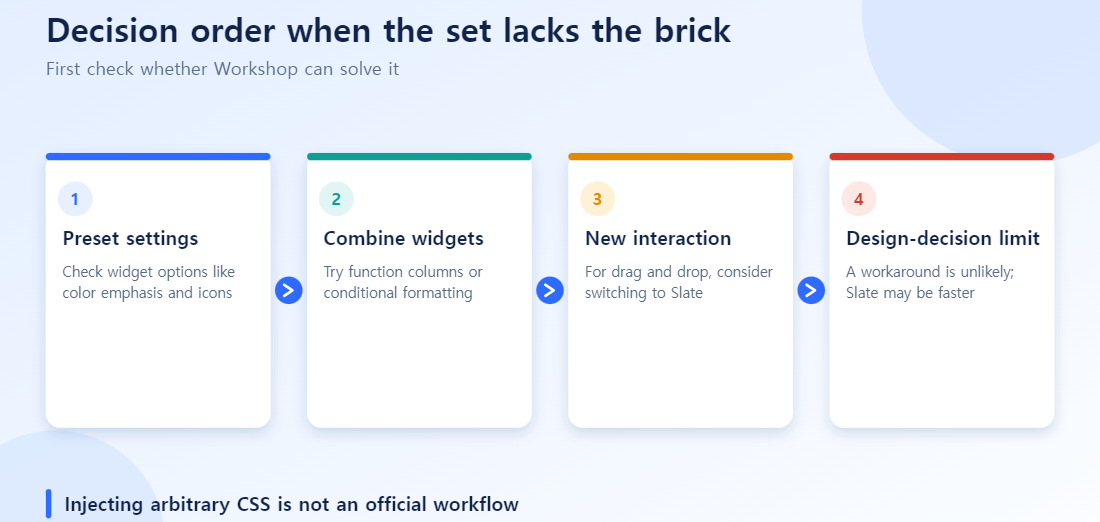
| Situation | Try first |
|---|---|
| You want to change a button’s color or shape | Check the preset widget’s settings (accent color, icon) |
| Can several widgets combine to give a similar effect? | Try workarounds such as function columns or conditional formatting |
| You need a wholly new interaction (such as drag and drop) | Consider switching to Slate |
| The limit is documented as a “design decision” | A workaround is probably impossible; moving to Slate may be faster |
FAQ
Q. Can I use custom CSS in Workshop? Preset widget styling (shadows, padding, color emphasis) can be adjusted within configuration settings, but injecting arbitrary CSS isn’t an official workflow. If you need that level of customization, Slate is the right thing to look at.
Q. If a widget behavior is labeled a “design decision,” is there no way around it? It means it isn’t officially supported — not that a workaround is always impossible. As with the URL-hyperlink case above, function columns or combining widgets differently can often achieve a similar effect.
Q. Do I really need to follow the layout rules (5 actions or fewer, 10 components or fewer)? They’re official guidelines, not enforced rules. But once you exceed these numbers, it shows up immediately in the “squint test” — if you get feedback that a screen feels cluttered, counting against these numbers first is the fastest diagnosis.
References
[1] Palantir, Workshop • Application design best practices, Foundry official documentation.
[2] PeerSpot, What needs improvement with Palantir Foundry? — real user reviews (Palantir Foundry Developer, Software Engineer III).
[3] Palantir Developer Community, Help with Dynamic Variables and URLs in Property List Widget in Palantir Workshop — real user question + Palantir staff (Phil-M) response.
[4] Palantir, Workshop • Widgets, Foundry official documentation.