
Building Your First Screen in Workshop: Widgets and Ontology Object Binding
Why Workshop matters
Workshop is a low-code UI builder that lets you build a screen through drag-and-drop with minimal code. The most common misconception is about visual polish — what actually determines whether a screen is done well isn’t widget placement, it’s the binding design: how data actually flows between widgets.
The widget composition flow
Workshop screens typically combine three widget types:
| Widget | Role |
|---|---|
| Filter List | Narrows an Object Set based on the conditions a user selects |
| Object Table | Displays an Object Set in a grid |
| Object View / Property Card | Shows the details of a selected object |
Layout widgets like Flex Layout, Tab, and Section build the responsive structure around them.
The ontology object binding mechanism
The binding mechanism follows this sequence:
- Object Set variable: The results of a Filter List are stored as an Object Set variable.
- Table binding: Connecting that Object Set variable to an Object Table means the table automatically updates whenever the filter changes.
- Active Object variable: Clicking a row in the table stores that object in an Active Object variable.
- Reflecting it on the detail screen: Binding the Active Object variable to a Property Card or Object View renders the clicked object’s details.
This architecture avoids reloading the entire dataset — only the bound variables that actually changed re-render, using the ontology’s indexed queries.
Common mistakes
- Vague variable names. Names like
var1orset2obscure what they’re actually for. A descriptive name likeactive_equipment_varmakes the screen much easier to maintain. - Skipping a data-flow sketch. Placing widgets first without mapping out what variables you’ll create and how they’ll flow tends to mean rebuilding later.
- Duplicating ontology ACL controls. Access control set on an Object Type already inherits down to Workshop widgets — you don’t need to redundantly rebuild permission logic at the screen level too.
Worked Example: From Order List to Detail View
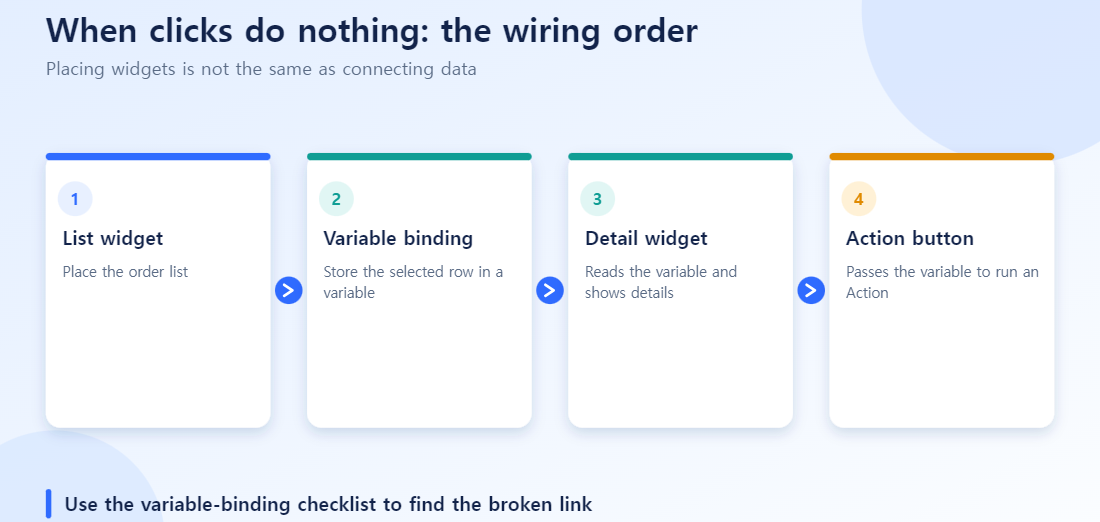
Say you are building a screen where clicking an order shows order details and customer info. The bindings stack up like this:
- A Filter List produces an object set variable for “orders in the last 7 days”.
- Bind that variable to an Object Table to display the list.
- When a row is clicked, the selected order is stored in an Active Object variable, say
selectedOrder. - Bind
selectedOrderto the Object View in the detail panel. - One more step: pull the linked Customer (via the Link Type) out of
selectedOrderas another variable and bind it to a separate customer card.
Step 5 is where people most often stop. Orders and customers are only connected by a Link Type; they do not appear together automatically. You have to explicitly extract the linked object into its own variable and bind it again.
Wiring Up an Action Button
A button that changes state (for example “Approve order”) adds one more binding. The Action widget takes selectedOrder as input and runs a predefined Action Type (for example ApproveOrder) on it. If the user lacks permission to run that Action Type, the button still shows but does nothing when clicked, which is another common source of “the screen doesn’t work” reports.
Binding Checklist
| Symptom | First thing to suspect |
|---|---|
| The list never appears | The Filter List object set variable is not bound to the table |
| Clicking does not open details | No Active Object variable, or it is not bound to the detail widget |
| Linked object info is missing | The linked object was never extracted into its own variable |
| Button does nothing | Action Type permission or a missing variable binding |
What’s next
From here, look at Object Explorer for deeper object investigation, or Pipeline Builder to see the stage where the underlying data actually gets built.
FAQ
Q. Is Workshop “completely no-code”?
Most screens only need widget placement and binding, but anything with complex logic needs Functions. It fits the label “low-code” better than “completely no-code.”
Q. How do widgets connect to ontology objects?
Binding a widget to an Object Type’s Properties or to an Action Type is what reflects value changes and clicks on the screen back into real ontology data.
Q. Can multiple people use the same screen at the same time?
Yes, within their permission range — Workshop uses the ontology’s existing RBAC system for this.
Q. What’s the difference between Workshop and a BI tool?
A BI tool is focused on querying and visualization. Workshop can execute real business actions — approvals, status changes — through Action Types.
Q. What’s the most common mistake?
Building the screen before the ontology has stabilized. Any structural change means rebinding every widget, so it works out better to start Workshop only after the ontology has settled.
Keep reading
- Building a House with LEGO, Until You Need a Curved Roof — Workshop UI Design Principles and the Customization Ceiling
A habit that saves time
Before touching layout, draw the variable flow on paper: which variable holds the filtered objects, which holds the selected object, and which widgets read each. A five-line sketch like this catches a missing binding in seconds and keeps the screen understandable for the next person who maintains it, long after the original builder has moved on.
Six checks when a Workshop screen does not respond
- Did you create the Object Set variable that holds the Filter List result?
- Is the Object Table bound to that variable?
- Is there a setting that stores the row selected in the table in an Active Object variable?
- Is the detail view (Object View and so on) bound to the Active Object variable?
- Are variable names meaningful (for example filtered-results, selected-order)?
- Did you verify that the data flow works end to end before polishing widget layout?
Quick answers
Q. The list shows but clicking leaves the detail empty. Where do I look first?
Check steps 3 and 4: whether the selected object is stored in the Active Object variable and whether the detail view is bound to it. Most breaks happen there.Q. Is it fine to build without design since it is low-code?
No. You write less code, but you still need to design the data flow of variables and bindings. Flow comes before widget layout.Q. What is the biggest risk as screens grow?
Variable names and connections becoming tangled. Set naming rules and a flow diagram early to make maintenance easier.