
Starting From a Single Churn-Risk Customer Click
“Check whether any of the customers with a recent spike in support tickets are at risk of churning.” Where do you even start with a request like that? Instead of writing a SQL join, you can open Insight and start by clicking on a single customer Object.
What Insight Actually Does
Insight is a code-free exploration tool built on your Ontology’s Object Types and Link Types. You build an analysis path by chaining Filter, Link, and Transform cards in sequence.
For a churn-risk investigation, that might look like this:
- Filter card: Keep only customers with 5+ support tickets in the last 30 days.
- Link card: Traverse to the connected “Contract” Object. Keep only customers whose contract is nearing expiration.
- Transform card: Sort the remaining customers by ticket count.
Every step is a click, no code involved. And an intermediate result — say, “customers with a ticket spike and an expiring contract” — can be saved as its own set and reused in other Foundry applications.
Six Core Capabilities of Insight
- Analysis paths: Save the filter/join flow you’ve built so far as a reusable set.
- Link traversal: Follow relationships to connected Objects while filtering and pivoting.
- Set operations: Combine different analysis results with union, intersection, and difference (e.g., the intersection of “ticket-spike customers” and “payment-delayed customers”).
- Visualization and mapping: Filter using distribution charts, histograms, and geographic data.
- SQL queries: Write a query directly when you need more precise analysis.
- Data writeback: Handle an anomaly you find mid-investigation immediately with an Action (e.g., running an “assign account owner” Action on this customer).
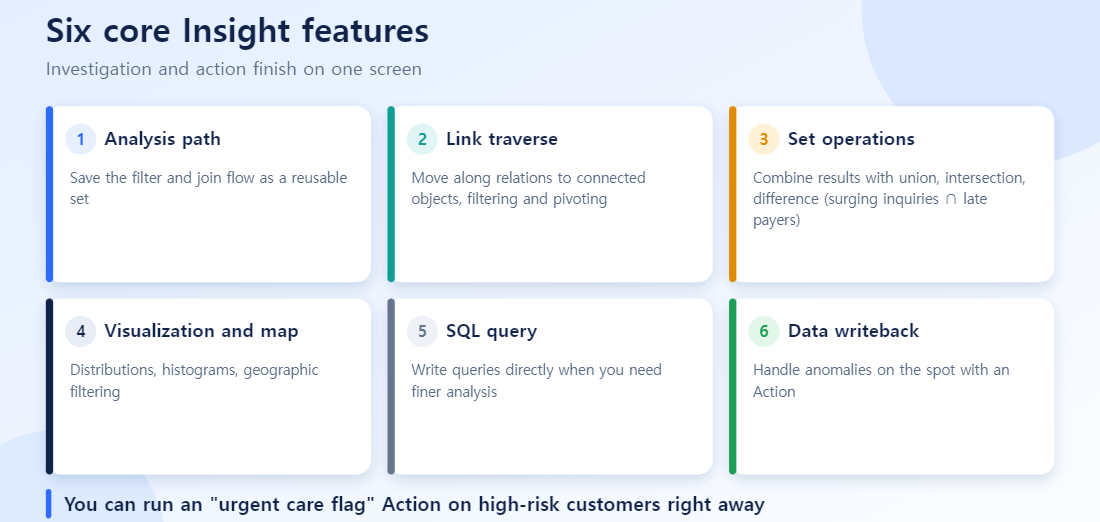
The real value of Insight shows up at the end of a churn-risk investigation, when you can immediately run an Action to flag the five highest-risk customers you found for “urgent care” — right there, in the same screen where you found them. Investigation and action happen in one place.
When to Use Insight vs. Other Tools
Foundry has several tools that look similar at first glance, which makes it easy to get confused about which to reach for.
| Tool | Strength | When to use it |
|---|---|---|
| Insight | Link-based visual exploration | Investigating a question that just came up, on the spot |
| Object Explorer | Ontology search and entry point | Starting to explore data for the first time |
| Quiver / Contour | Deep time-series and statistical analysis | Doing a formal, deep analysis of structured data |
| Workshop | Custom operational screens | The same investigation gets repeated regularly by multiple people |
If you’re investigating churn risk “once, today,” Insight is the right tool. If the whole sales team ends up running this same investigation every week, that’s the signal to turn the same logic into a fixed Workshop screen instead.
Three Mistakes Beginners Commonly Make
Forcing a recurring operational screen into Insight. Insight is optimized for on-the-spot investigation. If a screen needs to be checked weekly, move it to Workshop.
Not saving and sharing intermediate results. If you build a useful set like “ticket-spike customers with an expiring contract” and don’t save it, you have to redo the same investigation from scratch next time.
Not checking writeback permissions ahead of time. Discovering you don’t have permission right as you try to run an Action mid-investigation breaks your flow. Check what Actions you’re actually allowed to run before you start.
Using It Alongside an LLM
Ontology-based exploration through Insight carries lower hallucination risk than vector-based RAG, because the schema and relationships are already defined — an LLM searching and querying only ever moves across a verified structure. That said, “Ontology-structure-based LLM exploration” isn’t an official term; it’s a description that’s become common in practice, not a formal spec.
Set Operations in Practice
Save “customers whose inquiries spiked” and “customers with recently delayed payments” as two separate analysis paths, and you can take their intersection to get the highest-risk core group right away.
- Union: spiking inquiries or delayed payments; anyone matching either goes on the watch list.
- Intersection: spiking inquiries and delayed payments; the most urgent priority group.
- Difference: spiking-inquiry customers minus those who already have an owner assigned, leaving only the untouched ones.
In SQL this means combining several subqueries and rewriting them each time. In Insight you pick two saved paths and choose an operator. When your hypothesis changes (say, “payment delay” moves from 15 to 30 days), you edit one path and the intersection recalculates automatically.
Insight vs. Writing SQL
| Aspect | Hand-written SQL | Insight |
|---|---|---|
| Exploration speed | Write and run queries repeatedly | Edit the path with clicks |
| Relationship traversal | Spell out each JOIN | Follow relationships with Link cards |
| Reuse | Save and manage queries separately | Analysis paths are saved and reusable |
| Set operations | Requires combining subqueries | Combine saved paths with operators |
| Custom logic | Maximum freedom | Switch to SQL mode when needed |
Frequently Asked Questions
Q. Should I learn Insight or Workshop first? If you do a lot of on-the-spot investigation, start with Insight. If you already have a recurring operational screen, start with Workshop.
Q. Can I hand off results from Insight to Quiver or Contour? Yes. A common workflow is doing a first-pass filter in Insight, then continuing into deeper time-series or statistical analysis in Quiver or Contour.
Q. Does an Insight screen update in real time? The underlying data updates on your pipeline’s schedule, so how close to real-time it is depends on that pipeline’s refresh cadence.
Q. Can multiple people view the same Insight investigation? Yes — you can share it through Compass’s permission system, and each user’s accessible data range is automatically restricted based on their own permissions.
Keep reading
- You Ran a Pivot Table and the Numbers Look Wrong — A Practical Guide to Foundry Contour
Six checks before starting an investigation in Insight
- Did you write the investigation question in one sentence (for example: customers with surging inquiries and imminent contract expiry)?
- Do the starting Object Type and the Link Types you will follow already exist in the ontology?
- Did you record the rationale for filter thresholds (for example 5 inquiries in 30 days)?
- Did you save intermediate results as an analysis path or set for reuse?
- Did you try combining conditions with set operations (intersection, difference)?
- Have you decided whether to process findings directly with an Action or add an approval step?
Quick answers
Q. Can I use it without knowing SQL?
Basic exploration chains cards (Filter, Link, Transform), so no code is needed. For more sophisticated analysis you can write SQL queries directly.Q. How is Insight different from Object Explorer?
Object Explorer is strong for looking deeply at one object; Insight suits building analysis paths that filter many objects along conditions and relationships.Q. Can others reuse my analysis?
You can save intermediate results as sets and reuse them in other Foundry apps. Describe names and conditions when saving so they are easy to understand later.